Print & Apparel Marketing Resources
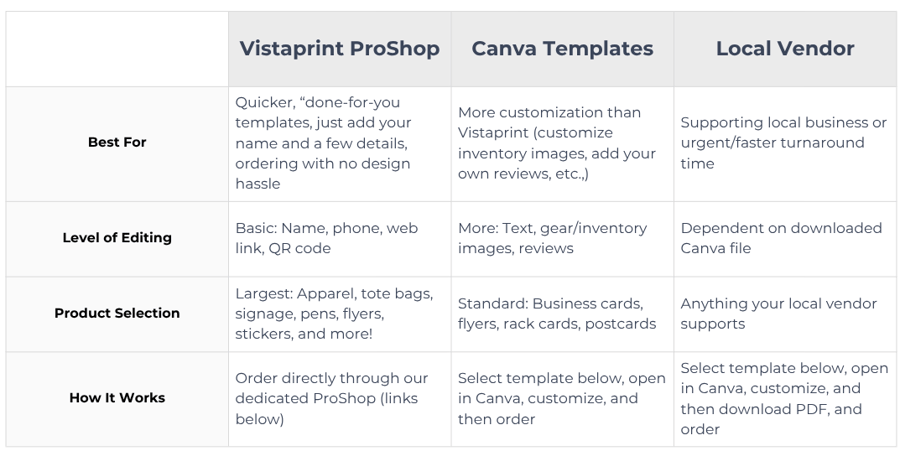
As a Quality Provider, handing out business cards, leaving flyers at local spots, or wearing branded apparel is a great way to showcase your business in your community. To give you total flexibility, we offer three different ways to source and print your physical marketing materials: VistaPrint Pro Shop, Canva Templates, or Local Print Vendors.
Explore the guide below to see which option best fits your needs, budget, and desired level of customization!
Which Option is Right for You?
Vistaprint ProShop
The BabyQuip VistaPrint Pro Shop is a curated, all-in-one store stocked with official BabyQuip materials and apparel. This is the fastest, easiest option if you want professional items printed and shipped right to your door without worrying about formatting or design rules.
What You Can Order: Apparel (t-shirts, sweatshirts), tote bags, business cards, flyers, rack cards, brochures, postcards, sticker sheets, stroller tags, pens, car magnets, thank-you cards, and more.
Customization Level: Quick and simple! You can easily personalize core contact details, including your Name, Phone Number, Website Link, and QR Code.
How to Get Started: Note: First-time users will be prompted to create a free VistaPrint account to access our shop.
Canva Resources
Want to update gear photos to match your actual gear inventory, highlight customer reviews, or update parts of copy? Our Canva templates give you more creative freedom while keeping your materials polished and on-brand.
Customization Level: More Flexibility. In addition to your contact info and QR code, you can update gear images, add personal testimonials, adjust text layout, and tailor messages for specific local campaigns.
How to Order / Print: Once customized, you can order physical prints directly through Canva's built-in print service, or download print-ready files (PDF) to use with a local printer.
💡 New to Canva? Watch our quick video guide: How to Edit Canva Templates under Video Walkthroughs below.
Local Print Vendors
Prefer to support a local print shop in your neighborhood, or need marketing materials printed on a tight deadline? You can easily work with a local print vendor using our designs.
How It Works:
- Select a design from our Canva Templates section above.
- Customize your details.
- Click Share → Download in Canva, choose PDF Print, and check the box for Crop marks and bleed (if requested by your printer).
- Send or bring the PDF file directly to your local printer.
Video Walkthroughs
Unsure how to go about editing our Canva and Vistaprint ProShop resources? Watch these walkthroughs for our recommended tips and tricks to editing and ordering printable materials.
How to Edit Canva Template: Featuring Beach-Focused Brochure
How to Edit Vistaprint ProShop Materials
Which print option should I choose?
Choose VistaPrint Pro Shop for fast, pre-made items with locked branding and zero design hassle. Choose Canva Templates if you want to customize details like gear photos or reviews. Choose a Local Vendor if you need items printed urgently or want to avoid shipping times.
Do I need paid accounts to access these resources?
No! VistaPrint requires a free account registration to access our exclusive ProShop pricing, and Canva templates can be edited and downloaded using a 100% free Canva account.
How do I order items after customizing a Canva template?
You have two choices: click "Print with Canva" inside the editor to have Canva print and ship items directly to you, or click Share → Download and select PDF Print to print the file locally or at home.
How do I send my design to a local print shop?
Edit your chosen template in Canva, download it as a PDF Print file (check the box for "Crop marks and bleed" if your printer requests it), and email or hand the file directly to your local print shop.